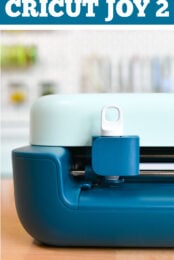
Cricut Joy got an updated design! With a new body case, Print then Cut capabilities, and lower price tag, Cricut Joy 2 is making it easier than ever for crafters to create in a smaller space!
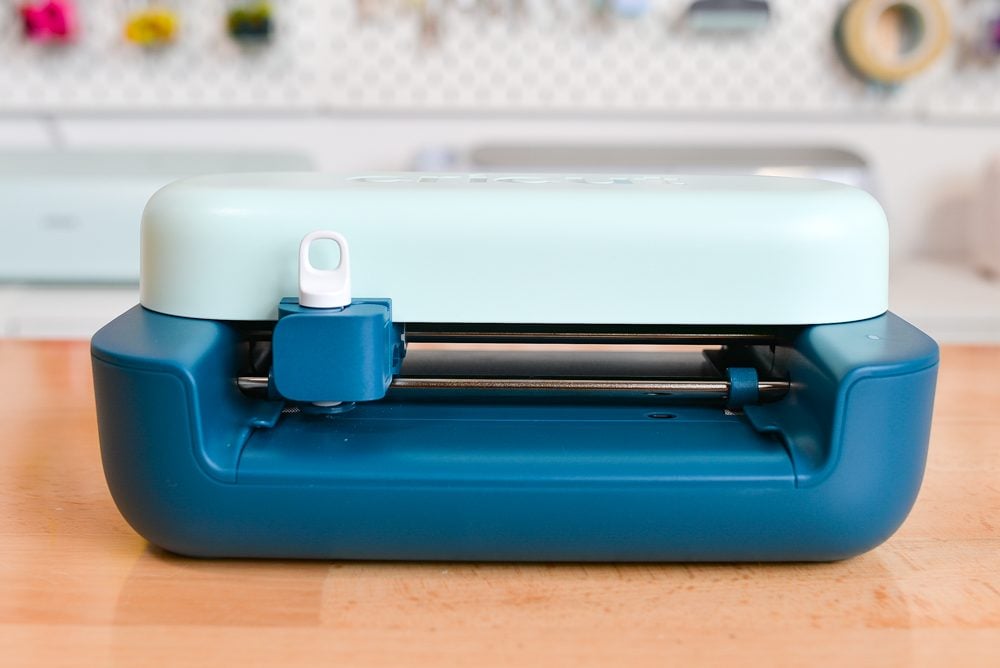
It’s time for another Cricut launch! This year, we got two new machines, Cricut Joy 2 and Cricut Explore 5. This is the the first time either of these machines has had a full makeover, with a completely new body case for each. But is it just the case that got a redesign?
In this post, I’ll walk you through the Cricut Joy 2 and all of the new features of this machine. If you want to learn more about the Cricut Explore 5, see my post The Ultimate Guide to the Cricut Explore 5. And if you want to compare these machines to all the machines in the Cricut line, check out my post on the Cricut Machine Differences.
Watch the Video
Want to watch my video review of the Cricut Joy 2? Just hit play below! Or keep reading for a written overview.
What’s in the Box
While you can buy the machine only from Cricut.com, most like you’re going to be buying one of the many bundles that Cricut has on sale both on their site and at Michaels.com.
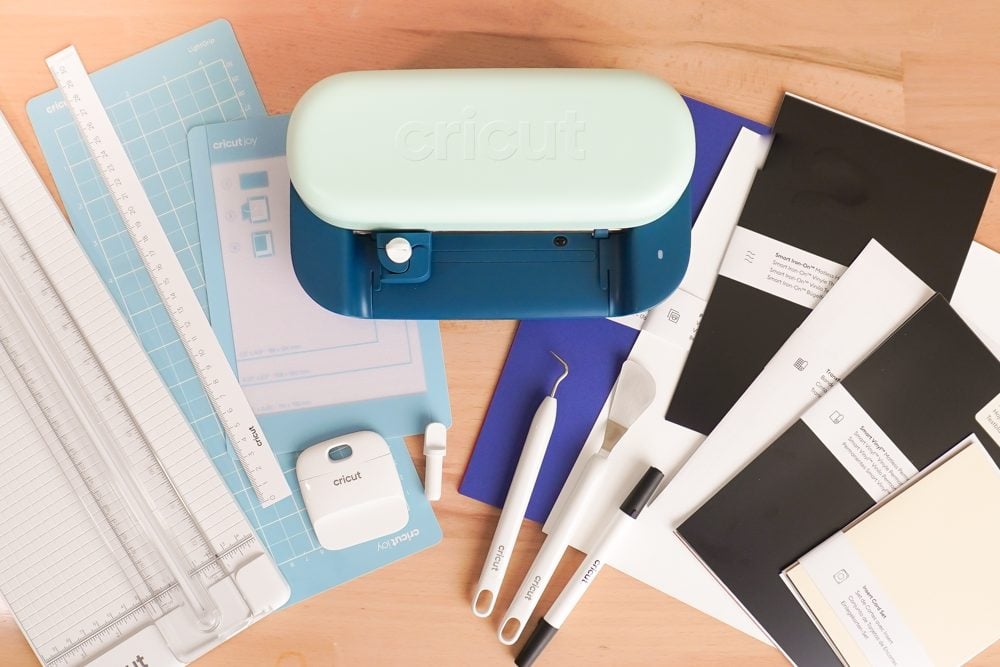
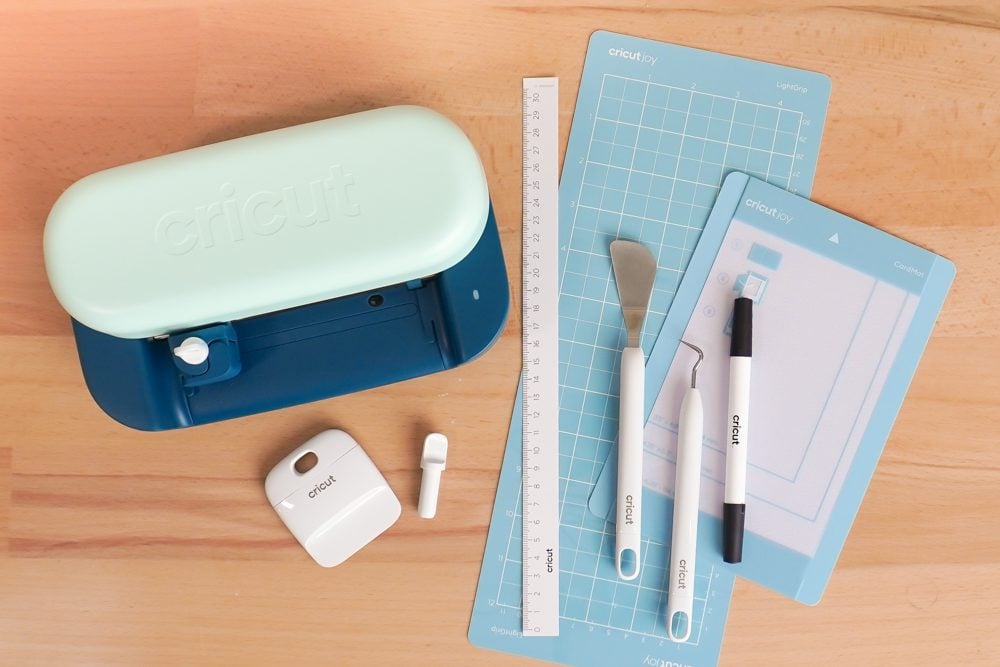
I got the Essentials Bundle in person at Michaels, which I think is probably the machine that most people will get. It came with so much more than any Cricut machine I’ve gotten in the past:
- Cricut Joy 2 machine
- Fine point blade*
- Scoring tool
- Black dual-tip pen/marker (0.4mm & 1.0mm)
- Blue LightGrip cutting mat
- Cricut Card Mat
- Power adapter
- Portable Trimmer
- Weeding tool
- Scraper
- Spatula
- 12″ Paper Ruler
- Four 5.5″ x 8.5″ sheets of Smart Iron-On (2 gold, 1 black, 1 white)
- Six 5.5″ x 8.5″ sheets of Smart Vinyl (3 black, 1 white, 1 gold, 1 red)
- Six 5.5″ x 8.5″ sheets of transfer tape
- Two Insert Card sets (1 taupe/black, 1 cream/black)
- Ten 8.5″ x 11″ sheets of cardstock (2 white, 2 cream, 2 red, 2 blue, 2 black)
- Three 8.5″ x 11″ sheets of printable vinyl (white)
*The fine point blade is now part of the housing. Instead of buying just the blades, you’ll buy new blades and housings together. I don’t love this—feels like more plastic waste. If you have an original Cricut Joy, your housing and blade will work in this new machine, and you can continue to buy your blades separately.
Overall, though, this is way more than I’ve ever seen in an Essentials bundle from Cricut. Normally you need to buy most or all of those tools separately and you only get a few small pieces of material to try out. This makes it so much easier to get started right out of the box without having to spend even more money on tools and materials to use your new Cricut.
Setting Up Cricut Joy 2
Unlike Cricut’s larger machines, Cricut Joy 2 does not have a power button. Instead, it’s powered on when plugged into the wall. You’ll notice that there are no other plugs for other cords. The machine is Bluetooth only and cannot be connected to a device via a USB cord.
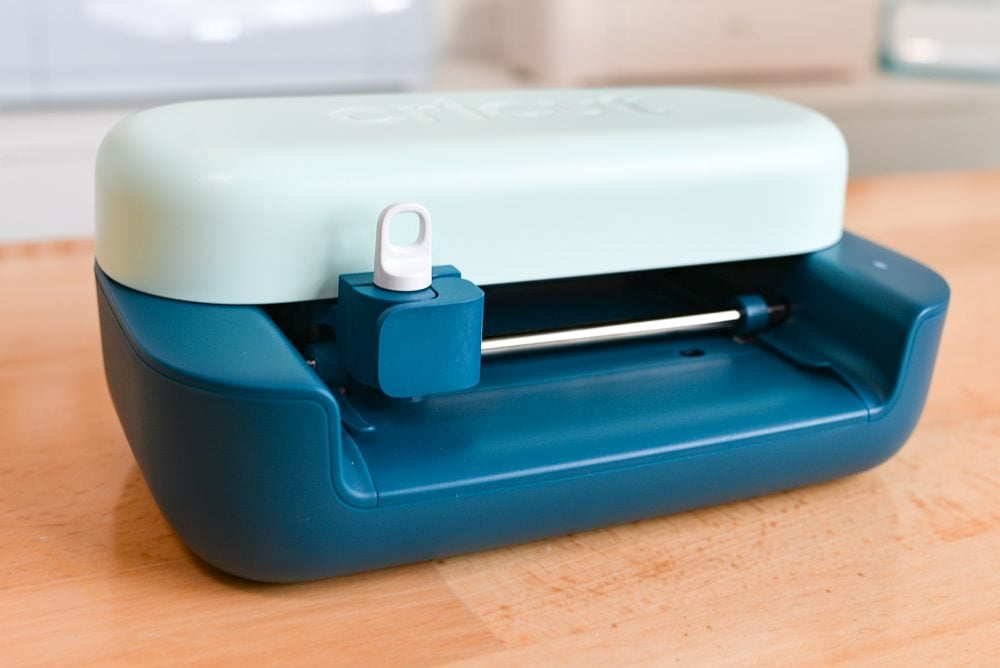
That’s it! You’re ready to get your machine set up.
Registering Your New Cricut
Cricut Design Space changed recently, and now you register a new machine using the dropdown in the upper right under your user name. Go to Settings and under the Machines tab, choose New Product Setup.
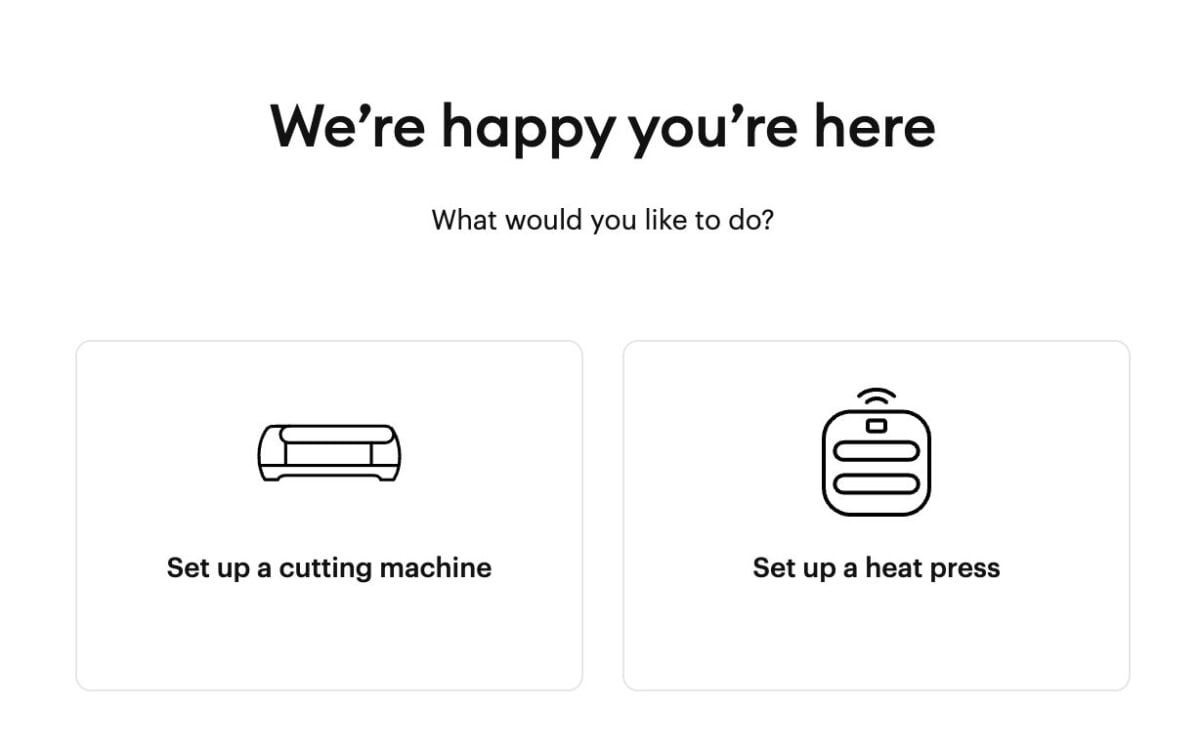
Here you’ll be walked through the steps to set up your new machine.
I was able to connect my machine just fine to do my test cut, but after that my computer did NOT want to reconnect. The Cricut wasn’t showing up in my list of Bluetooth devices like all my other Cricut machines. I restarted my computer and this seemed to take care of the problem and it connected fine after that.
How is Cricut Joy 2 Different than Cricut Joy?
The biggest visual difference between Cricut Joy and Cricut Joy 2 is the case redesign. Cricut Joy 2 has a completely open-body style with no closing lid, making it a bit smaller and about a pound lighter than the original. It’s also much smaller when open. That makes it even easier to take it to craft nights at a friend’s house or on the go at a craft fair.
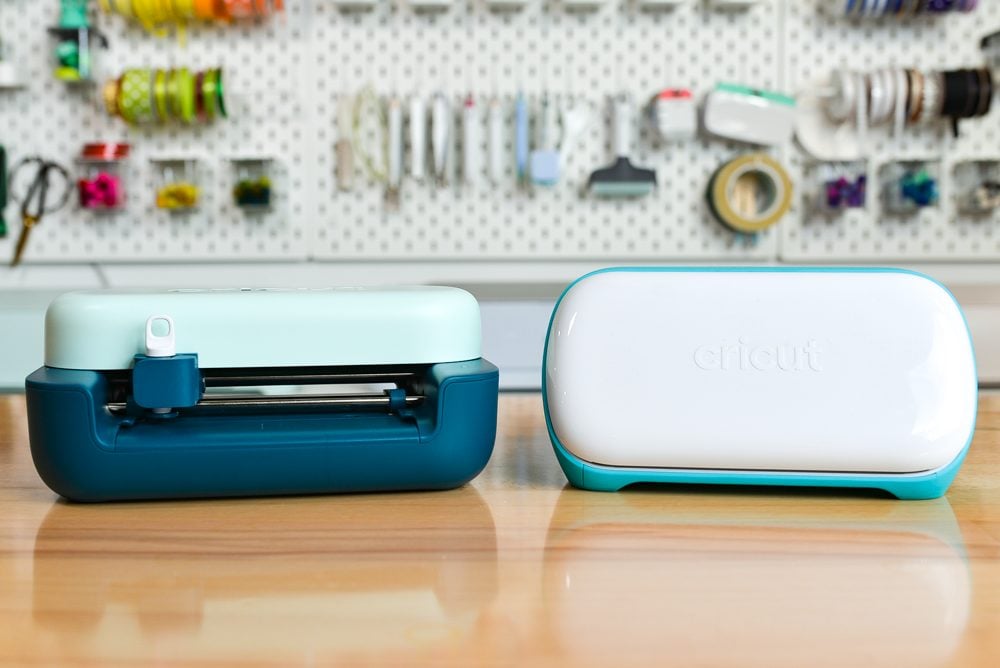
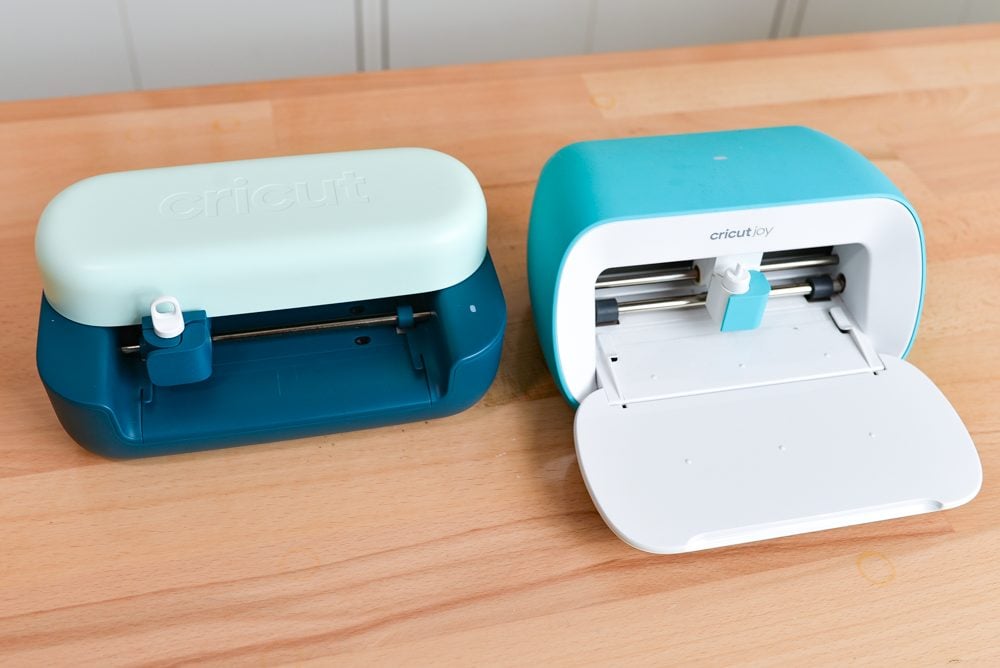
I’ll admit I’m a little nervous about the open design—especially in a craft room where dust and dog hair and glitter seem to magically appear everywhere. It doesn’t feel quite as weighty or solid as the first Joy, and I’ll share more on that later.
Another place Cricut Joy 2 really stands out is in added features. It supports Print Then Cut (yay!) and includes a scoring tool right in the box—something you couldn’t even use on the original Joy. That opens up way more project possibilities, especially for stickers, labels, and folded cardstock projects. My first project was to make this cute bookmark and it worked perfectly right out of the box—and I didn’t even have to calibrate Print then Cut!
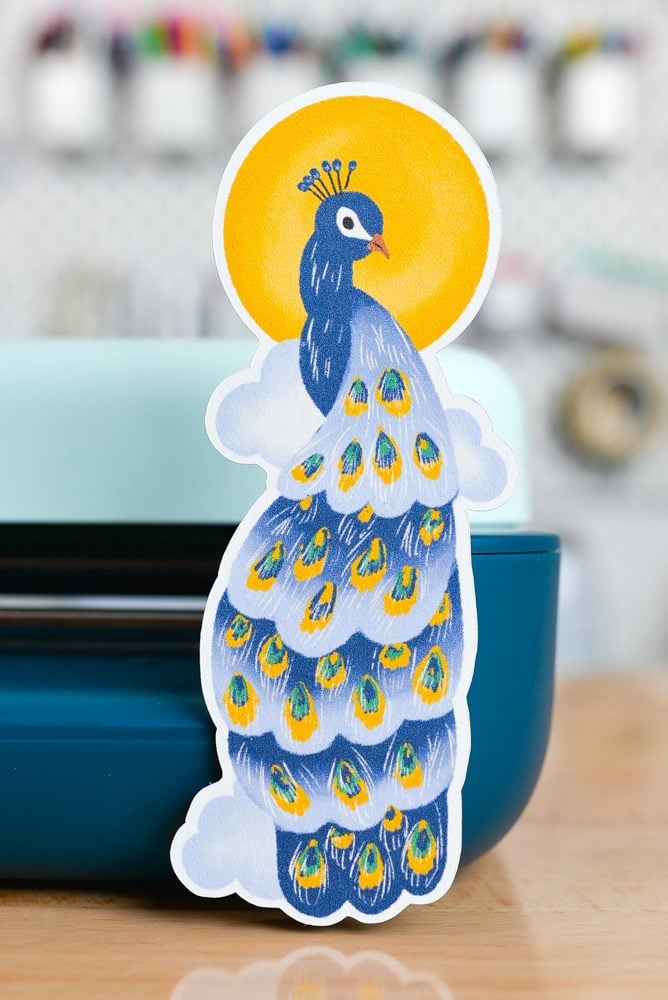
NOTE: to use Print then Cut, you will need your own printer. My favorite is the HP Envy series and it’s what I use for all of my Print then Cut projects, even for products I sell.
In terms of cutting, both machines use the same regular blade and have the same cutting size, so you’re not losing (or gaining) capacity there. Your existing Joy mats and materials will still work, and the overall cutting performance is very similar between the two.
What Tools Work with Cricut Joy 2
The machine uses the same blades and tools as the original Cricut Joy (though the new ones look a little different with a helpful handle on top) and you can can swap them between machines.
You can use:
- Fine point blade
- Scoring tool
- Pens and markers (those specifically made for Cricut Joy machines AND the new Cricut universal pens that work with all of their machines)
- The foil tool
Note there is only a single basic housing in all Cricut Joy machines, so you cannot use some of the more advanced tools, like the knife blade, rotary blade, or any of the other tools with the gold gear a the top (those gold-topped tools are for the Cricut Maker machines only).
To insert a blade or tool into the machine, simply open the clamp on the carriage and drop in your tool. You do NOT need to press down (in fact, that can damage your Cricut). Just set it in there and close the clamp!
What Can I Make?
Really, this machine is comparable to the larger Cricut Explore machines, but in a smaller size! This is a definite upgrade over the original Cricut Joy. You can make:
- Printable stickers, including waterproof stickers
- Card projects for all sorts of occasions
- Printable organization labels for pantry, craft room, work, etc.
- Adhesive vinyl decals for mugs, tumblers, phone cases, and more
- Home decor like wall decals and borders
- Iron on vinyl decals for t-shirts and other apparel
- Cardstock cards, banners, and party decorations
How Much is the Cricut Joy 2?
I am really pleased to see that the Cricut Joy 2 retails at just $99 for the machine itself, which includes a few smaller tools and a handful of materials (the original Cricut Joy retails at $120)! The Essentials Bundle that I got was $139 and came with all of those extra tools and materials I mentioned above.
Let’s talk about pricing and quality. Since I got my first Cricut Explore in 2014, Cricut has clearly positioned itself as a premium crafting brand. Their machines have always felt sturdy and well-built, often using higher-end materials than some competitors—and that premium feel was reflected in the price.
Over the past few years, though, many crafters have had less disposable income to spend on hobbies. It seems like Cricut has responded by making the decision to lower manufacturing costs so their machines can come in at a more accessible price point.
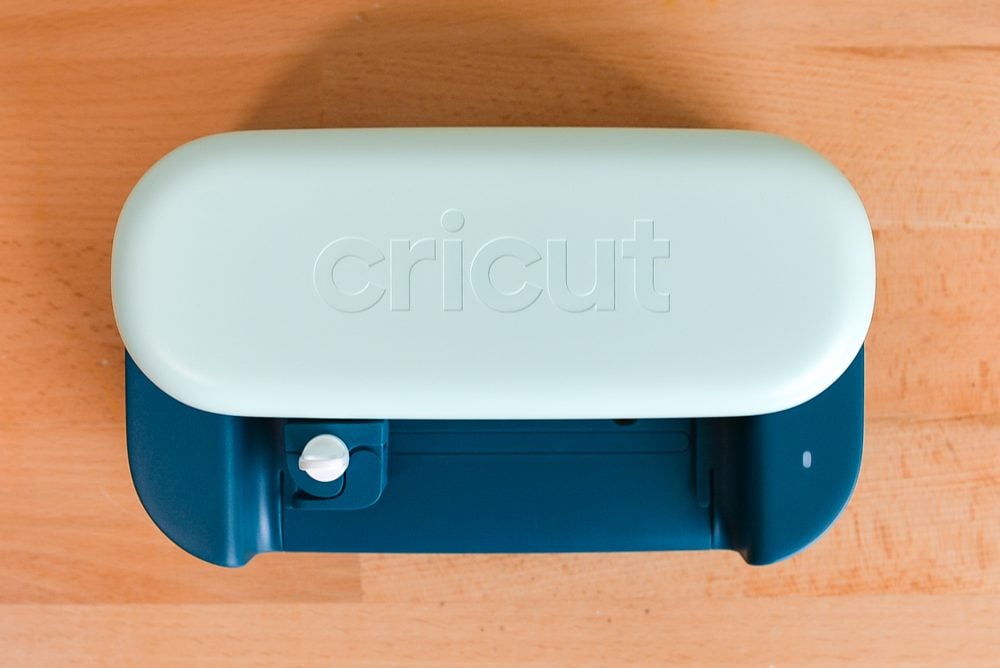
That likely explains why this new machine doesn’t feel quite as hefty as the original Cricut Joy. I believe they are trying to balance build materials with affordability. The lighter construction helps keep the price down, which makes Cricut Joy 2 more attainable for more people.
Is the Cricut Joy 2 Worth It?
If you’re new to Cricut and want a compact, beginner-friendly machine, the Cricut Joy 2 is a great choice, and I would 100% recommend it over the original Cricut Joy. It keeps the same easy-to-use cutting performance as the original Joy but adds Print Then Cut and scoring, which expands what you can make right away—especially stickers, labels, cards, and folded projects. For the price point, it offers more creative flexibility than the original!
If you already own the original Cricut Joy, you may not need to upgrade. The cutting size, blade, and overall performance are the same, so you’re not gaining more power or capacity. However, you are gaining functionality. If you’ve ever wished your Joy could do Print Then Cut or wanted scoring for cards and paper projects, the upgrade makes sense. If you’re perfectly happy with what your current Joy does and don’t need those features, you can totally stick with your current machine!
Bottom line: The Cricut Joy 2 is absolutely worth it for new users and for existing Joy owners who want more project options. But if your original Joy still meets your needs, keep on crafting with what you have!

Comments & Reviews
Natasha Kimberly says
Cricut Joy 2 is a compact, beginner-friendly cutting machine with a designed look, Bluetooth-only set up, Print Then Cut support, and a generous starter bundle geometry dash
arderborelnot says
Thanks for the good writeup. It in truth was once a enjoyment account it. Glance complex to far brought agreeable from you! By the way, how can we keep in touch?
Cavanaugh Brett says
The Cricut Joy 2 seems perfect for small DIY projects like labels, cards, and stickers. 99 nights in the forest